PHOTO TO VIDEO / THE WALKTHROUGH
How to Make a Hotel Lobby AI Video
Learn how to make a Hotel Lobby AI video from two photos with Hot AI Video. Follow the upload steps, choose your settings, and watch a real result.
Product information maintained by Hot AI Video. Updated .
Published
Create your Hotel Lobby videoPreview photos without an account. Generation requires sign-in and purchased credits.
Hotel Lobby AI turns two separate photos into a duo performing in an orange booth with a suspended microphone. You choose the people, framing, and duration; the generator creates the performance with sound. The video above is a real output from Hot AI Video, also featured on our homepage.
You do not need to write a prompt or edit a timeline for this workflow. Here is how to make your own Hotel Lobby AI video, from selecting the photos to saving the finished clip.
Before you start
Have two photos ready, along with permission to use them. You can explore the photo setup without an account. Generating a video requires signing in and using purchased credits; signing up does not include free credits.
- Two separate photos. One clearly visible, consenting adult in each image.
- JPG, PNG, WebP. Up to 10 MB per photo.
- At least 300 × 300 pixels. Width-to-height ratio between 0.4 and 2.5.
- Permission to use both images. You must be 18 or older and have consent from every depicted adult.
01. Prepare two clear photos
Choose one front-facing photo for each performer. The face should be in focus, well lit, and unobstructed. A straightforward portrait makes it easier to see who you are putting on stage.
Avoid group shots, extreme crops, heavy filters, and sunglasses that hide the eyes. If a photo is too small, use a higher-resolution original instead of stretching it. Follow the file and dimension requirements above.
02. Open the Hotel Lobby generator
Open the Hotel Lobby AI Video Generator on our homepage and scroll to the photo studio. The studio has a Left performer slot and a Right performer slot.
You can choose, preview, replace, and swap your photos before signing in. Selecting a photo initially previews it locally; generation submits the photos for processing. Our Privacy Policy explains how uploaded images are handled.
03. Upload your left and right performers
Select Choose photo in the left slot and pick your first image, then repeat in the right slot. You can also drag one image into each slot. Check both previews before continuing.
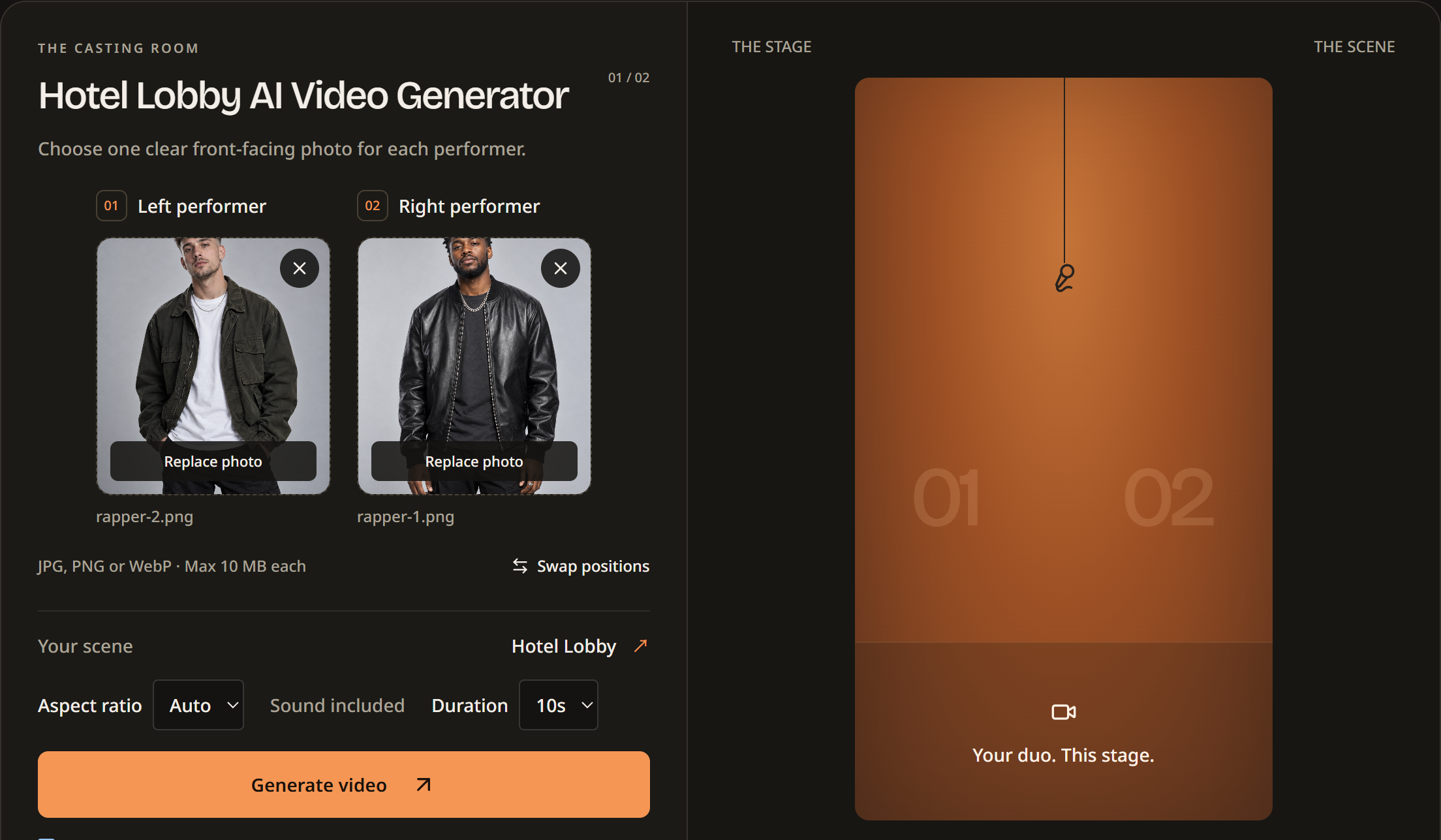
Use Replace photo to choose a different image, or the remove control to clear a slot. Select Swap positions if you want to reverse the assignments. The positions guide the model; exact placement in the generated video can vary.
If the studio rejects a file, check its format, size, dimensions, and proportions. Both photos must be accepted before you can generate.
04. Choose framing and duration
The scene is Hotel Lobby. Choose an aspect ratio and a clip length using the controls below the photos. Sound is included for every available duration.
| Setting | What to choose |
|---|---|
| Aspect ratio | Auto for automatic framing; 16:9 for landscape, 9:16 for portrait, or 1:1 for square. |
| Duration | 5s (20 credits) · 10s (40 credits) · 15s (60 credits) |
| Audio | Sound is included at every duration. |
| This walkthrough | Auto aspect ratio · 15 seconds · 60 credits. |
For this walkthrough, select Auto and 15s. Auto lets the generator determine the framing. If you already know where you will share the video, you can choose 9:16 for a portrait post, 16:9 for landscape, or 1:1 for a square format instead.
Choose 5 seconds if you want a shorter take that uses fewer credits, or 10 or 15 seconds for a longer performance. The example illustrates the style of output; these settings do not guarantee an identical result.
05. Sign in and generate your video
Select Sign in to check access if you are not signed in. Check your available credit balance and add credits through Pricing if needed. A 15-second video uses 60 credits. Photo selection and preview do not spend credits.
Review the consent confirmation below the generate button. You must be 18 or older, have permission and consent for both photos, and agree to the linked Terms, Privacy Policy, and Acceptable Use Policy.
When both photos are ready and you have enough credits, select Generate video. The studio uploads and checks the photos, submits the task, and shows progress while the video is generated and checked before delivery. Avoid submitting another task just because the first one is still processing.
If generation is temporarily unavailable, follow the access message in the studio or contact support.
06. Preview, download, and keep your result
When the video is ready, play it in the studio or open it from History. Use the player’s volume control to hear the sound. Review the faces, movement, framing, and overall result before sharing.
Select Open / download video to open or save the completed file. If your browser opens the video in another tab, use its save or download control to keep a local copy. Completed videos are available for 30 days after completion, so download anything you want to keep longer.
The sample at the top of this guide is a real generated output, rather than a mockup. Your own photos will produce a separate result, and appearance, movement, and positions can vary. See the video delivery terms for retention details.
Tips for a better Hotel Lobby AI video
- Make both faces easy to see. Use sharp, evenly lit portraits rather than dark or heavily filtered photos.
- Check the cast before generating. Replacing or swapping photos in the preview costs no credits.
- Choose the format for your destination. Portrait, landscape, and square framing serve different layouts; choose before submitting.
- Review the whole take. Watch with sound before downloading or sharing. AI output may change details of a person’s appearance or position.
Hot AI Video is an independent tool. It is not affiliated with Migos, the performers, or the original show. The scene is an AI-generated creative interpretation.
Frequently asked questions
Does the Hotel Lobby AI video include sound?
Yes. Generated videos include sound for 5-, 10-, and 15-second clips. The real example above also has sound. Use the player controls and check your device volume when watching.
Do I need a prompt or video-editing software?
No prompt or editing software is required for this studio workflow. Choose two photos, set framing and duration, confirm consent, and generate the clip.
Can I choose who appears on each side?
Yes. Use the left and right photo slots, then Swap positions if needed. These assignments guide the model, but exact placement in the output can vary.
What if I do not have enough credits?
Your balance must cover the selected duration before generation can start. Visit Pricing to check the available credit packs, then return to the studio. Sign-in and sign-up do not provide free generation credits.
What happens if generation fails?
Check the studio message or the task in History. Failed generations return credits with their original expiry. A pending task is still processing, so check its status before trying again. If the failure continues or the result is restricted, contact support with the task details.
Why does my video look different from the example?
Your photos guide a new generation. The model can vary faces, movements, and positions, so the example demonstrates the format rather than an exact result you will reproduce.
Can I download the result later?
Yes. Return to History while the completed video remains available. Download it within 30 days of completion if you want to keep it permanently.